
FAQ / Collections / How to select which images appear on the cover of your collection
How to select which images appear on the cover of your collection
If you do not ‘Organise’ your collection, the first three items you added to the collection will be your cover images by default.
Two ways to choose your collection’s cover images
Option 1
Items moved to the top of the collection become the cover images.
Go to the relevant collection and click the ‘Organise’ button under the name of your collection:
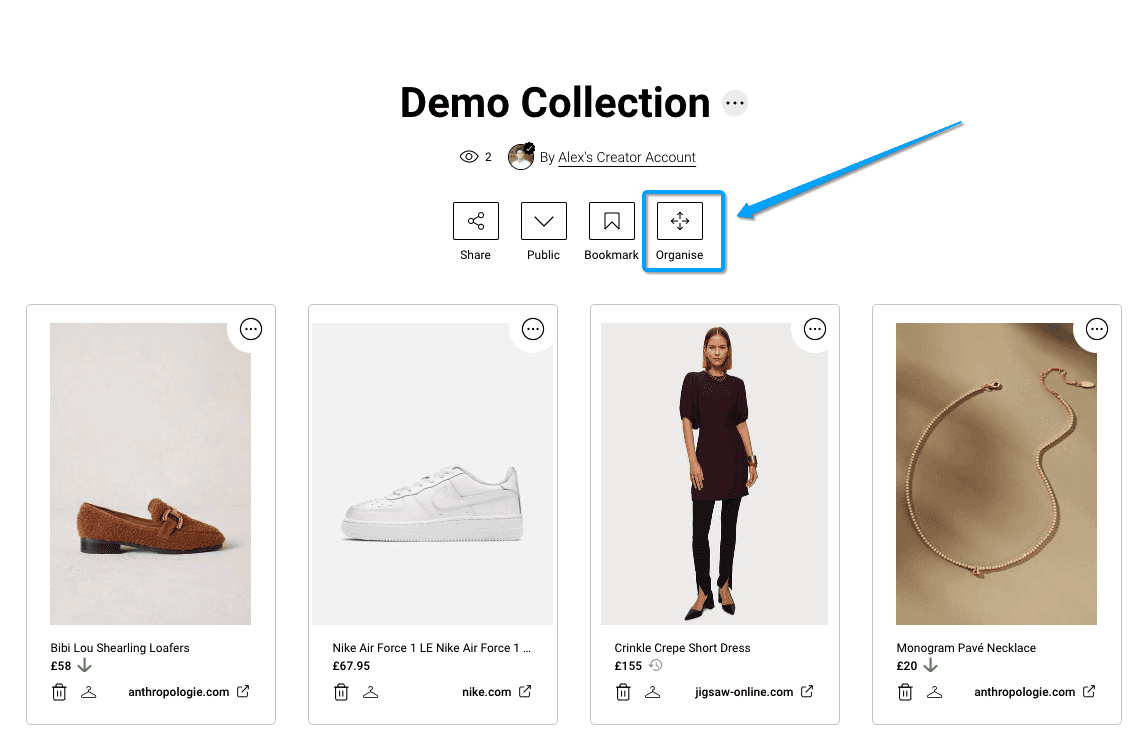
2.Whichever items you move to the top of your collection will be your cover images. With the first item being the largest image.
Option 2 (Pro feature)
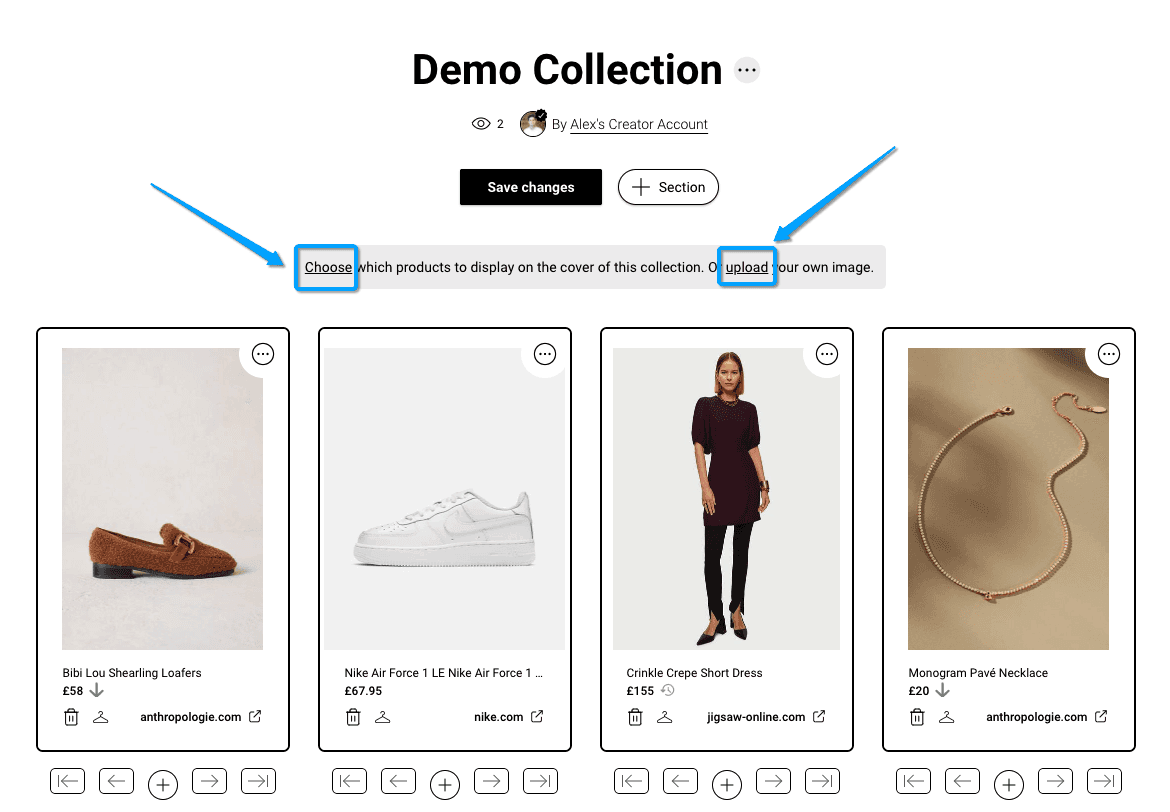
Choose any images or upload your own.
If you have a ‘Moonsift Pro’ account you can also:
Choose any images from your collection to display on the cover (whether they are at the top of your collection or not) or,
Upload your own image. If you upload your own image, this image will take up the entire cover of the collection (i.e. just the image you upload will display on the cover).
Can’t find the question you’re looking for? Send us an email at hello@moonsift.com